

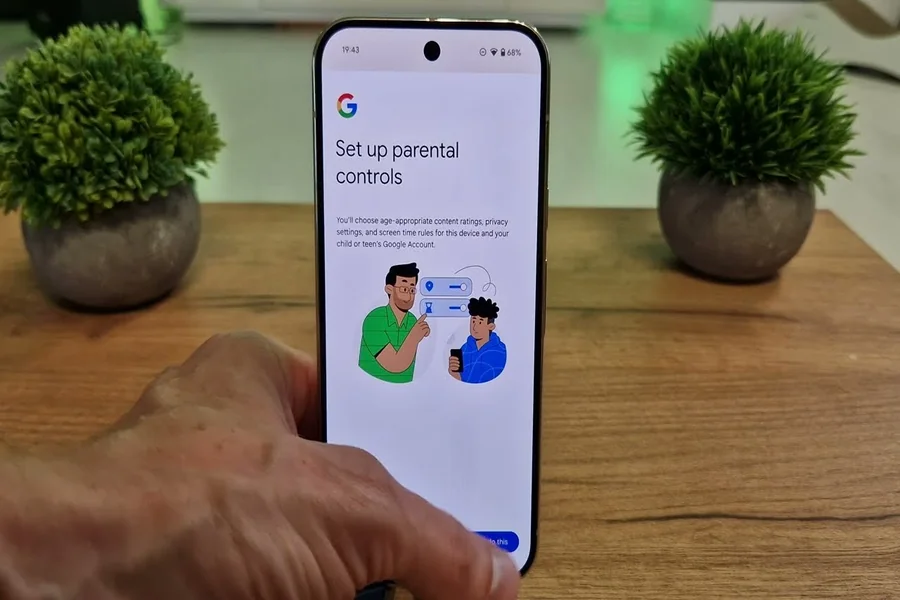
Google Pixel Parental Control Settings can help parents create a safer and healthier digital environment for their children. Smartphones offer valuable opportunities for learning, communication, entertainment, and creativity, but children may also encounter inappropriate content, spend too much time on screens, or download apps that are not suitable for their age. Setting reasonable boundaries can help families manage these challenges while allowing children to enjoy useful technology.
Google Pixel phones run Android and offer several tools for managing app access, screen time, permissions, and online experiences. Parents can also use Google Family Link to supervise a child’s compatible Google account and manage supported settings from their own device. The available controls depend on the child’s age, account configuration, Android version, and the services being used.
Understanding these options makes it easier to choose rules that fit your family’s needs. Rather than restricting every activity, the goal is to encourage responsible smartphone use, protect privacy, and help children develop healthy digital habits.
How Google Pixel Parental Control Settings Work
Google Pixel parental controls combine Android’s built-in features with Google’s family supervision tools. The best setup depends on whether your child has their own Google account, how old they are, and which apps they use.
One of the main tools is Google Family Link. It allows parents to supervise a child’s compatible Google account, review supported activity information, manage certain apps, and set screen-time limits. Parents generally configure supervision through the Family Link app on their own compatible device.
Family Link can provide options for setting daily screen-time limits, establishing device downtime, approving certain app downloads, and managing content restrictions for supported Google services. Some controls may differ according to the child’s account and local requirements.
Pixel’s Android settings also provide controls for individual apps, including permissions for the camera, microphone, location, and notifications. These settings can help parents review which apps have access to sensitive information.
It is important to understand that parental controls do not automatically monitor or restrict every activity across the internet. A restriction configured for one Google service may not apply to another website or third-party application. Parents should review the available settings individually and test them to understand what they actually control.
How to Set Up Google Family Link on a Pixel Phone
Google Family Link is a practical starting point for parents who want to manage a child’s Android device. Before beginning, make sure both devices have internet access and that you can sign in to the appropriate Google accounts.
Start by installing or opening the Family Link app on the parent’s device. Follow the instructions to connect the child’s Google account or create a supervised account when eligible. If the child already uses a compatible Android phone, follow the prompts to connect that device to the supervision arrangement.
Once setup is complete, open Family Link and select your child’s profile. Depending on the account and device, you may see options for screen-time management, app limits, content restrictions, and device settings.
Take time to review each available section instead of enabling every restriction immediately. For example, you might begin by setting a reasonable daily screen-time limit, requiring approval for app installations, and configuring downtime during schoolwork or bedtime.
After changing a setting, check the child’s Pixel to confirm that the rule works as expected. Some changes may take time to apply or may require the device to be connected to the internet.
Parents should also explain the purpose of supervision to their children. A clear conversation about online safety, privacy, and household expectations can make parental controls easier to understand and follow.
Manage Screen Time, Apps, and Online Content
Screen-time management is one of the most useful parts of a family smartphone plan. However, effective supervision involves more than simply counting the minutes a child spends using a device.
Set Daily Screen-Time Limits
Family Link offers daily screen-time controls for supported supervised devices. Parents can choose limits that suit the child’s age, school schedule, and family routine.
For example, you may allow more recreational phone use on weekends than on school nights. The aim is to establish predictable boundaries that leave enough time for sleep, exercise, learning, family activities, and offline hobbies.
Avoid choosing limits without considering how the phone is used. A child who relies on the device for homework may need different arrangements from one who mainly uses it for games or videos.
Schedule Downtime
Downtime can help families create phone-free periods, such as bedtime or time reserved for homework. Family Link provides scheduling options for supported accounts and devices.
Choose a schedule that matches your household routine. Before bedtime, for instance, you could restrict recreational access while ensuring that important family communication remains possible where the available settings allow it.
Review the schedule occasionally as school hours, activities, and responsibilities change.
Review App Downloads and Limits
Parents can use Family Link to manage supported app approvals and set limits for individual applications. This can be helpful when a child spends too much time on games or entertainment apps.
Review new apps before allowing installation, especially when they involve messaging, social networking, location sharing, or in-app purchases. Check the app’s age rating, privacy information, and permissions.
Remember that an app’s age rating is a useful guide rather than a guarantee that every feature is appropriate for every child.
Restrict Age-Inappropriate Content
Google provides content controls for supported services, including options associated with Google Play, YouTube, and Google Search. The exact restrictions available depend on the service, account, age, and supervision settings.
For example, parents can review Google Play content restrictions and available YouTube supervision options. SafeSearch may help filter explicit results in Google Search, but it should not be treated as a complete internet filter.
If your child uses third-party browsers or video applications, review their individual safety settings as well. Controls configured in one service may not cover content accessed through another.
Protect Privacy and Improve Digital Safety
Parental controls are most effective when combined with regular conversations about privacy and online behavior. Children should understand why certain settings are enabled and what information they should avoid sharing.
Review App Permissions
On a Pixel phone, open Settings and locate the app permissions or Privacy section. The menu names may vary by Android version. Review which applications can access location, contacts, the camera, the microphone, and other sensitive information.
If a simple game requests access that does not seem necessary, investigate before allowing it. Where appropriate, deny the permission or choose a more limited access option.
Some applications require certain permissions for specific features, so consider the purpose of the app before changing its access.
Teach Safe Online Communication
Explain that children should be cautious when interacting with people they do not know online. They should avoid sharing their home address, school details, passwords, financial information, or private photographs with strangers.
Encourage them to tell a trusted adult if someone sends threatening messages, asks for inappropriate images, or makes them feel uncomfortable. Children should know they can ask for help without being blamed for reporting a problem.
For more smartphone guidance and technology-related tips, you can visit pixelspinx. Reading practical guides alongside reviewing your phone’s settings can help you become more familiar with Pixel features and digital safety options.
Keep Accounts and Devices Secure
Use a strong screen lock and keep Android and installed applications updated. Review the child’s Google account security settings and make sure account recovery information is appropriate and current.
Avoid sharing account passwords unnecessarily. Parents should use the official supervision tools rather than relying on unfamiliar applications that claim to monitor every activity.
No parental control system is completely foolproof. Regularly review the settings and discuss new apps, online experiences, and privacy concerns as your child grows.
Common Problems With Pixel Parental Controls
Sometimes a setting may not work as expected. The cause can be an account limitation, an unsupported feature, a connectivity problem, or a misunderstanding about what the control covers.
If Family Link does not show the expected options, confirm that the child’s account is connected correctly and that the app is updated. Check whether the child’s device and account meet the requirements for the feature you want to use.
If screen-time limits do not seem to apply, review the selected device, the configured schedule, and any app-specific exceptions available in your setup. Make sure the phone can connect to the internet so changes can synchronize when required.
Content restrictions may also behave differently across applications. A Google Play restriction does not necessarily prevent access to the same content through a browser or another service. Review each service’s own controls and test the setup.
If an app is blocked unexpectedly, check its individual limit and the broader downtime or device-lock settings. You may need to adjust a rule rather than disable parental supervision entirely.
Finally, remember that menu names and features can change with Android updates. When instructions do not match your phone, consult the current help information within Family Link or Android settings.
Final Thought
Google Pixel Parental Control Settings give parents practical ways to manage screen time, review app access, and establish safer online habits. Google Family Link is a useful starting point for supervised accounts, while Android’s privacy and permission settings provide additional control over how applications access personal information.
The most effective approach combines appropriate technical restrictions with honest conversations. Set limits that match your child’s age and daily routine, review unfamiliar apps, and explain how to recognize unsafe online situations.
Technology changes quickly, so revisit your family’s settings as your child grows and their needs change. With thoughtful supervision and consistent communication, a Google Pixel phone can support learning, connection, and responsible digital independence.
FAQs
1. Does Google Pixel have built-in parental controls?
Yes, Pixel phones include Android privacy and app settings, and parents can use Google Family Link to manage supported supervision features for a child’s compatible account.
2. How do I set parental controls on a Google Pixel?
Install or open Google Family Link on the parent’s device, connect the child’s eligible Google account, and follow the setup instructions to configure supported restrictions.
3. Can I limit my child’s screen time on a Pixel phone?
Yes, Family Link offers daily screen-time limits and downtime scheduling for supported supervised accounts and devices.
4. Can I block apps on a Google Pixel?
Family Link provides app management options, including limits and restrictions for supported applications. Available controls depend on the child’s account and device.
5. Can parental controls block inappropriate websites?
Some content filters can reduce access to certain material, but they do not block every inappropriate website. Review browser settings, search filters, and other apps your child uses.
6. Can I manage Google Pixel parental controls from my own phone?
Yes, parents can use Google Family Link on a compatible device to manage supported settings for a supervised child’s account.
7. Are Google Family Link parental controls free?
Google Family Link is generally available without a separate subscription, although device compatibility, account eligibility, and individual service features may vary.
8. Do parental controls guarantee complete online safety?
No, parental controls can reduce some risks but cannot prevent every unsafe interaction or inappropriate experience. Regular communication, privacy education, and periodic settings reviews remain important.
